Samsung Galaxy S4: How to Change Default Search Engine in Internet App in Android 4.4 Kitkat

Internet users always grow from time to time. It triggers the emergence of many new websites that provide various information for the users. To help you find the webpage and/or information you're looking for in Internet with ease, then you can use a search engine. The search engine will help you to find a webpage contains with the information as same as the search term you have typed in the search field in the search engine. By default, when you type a word in the address bar of the Internet app, then you'll be given with the search result of the word you have typed by using the default search engine.


How to change default search engine in Internet app?
By default, the Internet app uses Google search as the default search engine. However, if you want to use another search engine as the default then you can do so by using the following steps:
  1. Open Internet app.
  2. Tap the box in the left side of the address bar and you'll see some search engine options displayed in the drop down menu:
    • Google search: select this option if you want to use google.com as the default search engine in Internet app.
    • Ask Jeeves: select this option if you want to use uk.ask.com as the default search engine in Internet app.
    • Yahoo! UK & Ireland: select this option if you want to use uk.search.yahoo.com as the default search engine in Internet app.
    • Bing: select this option if you want to use bing.com as the default search engine in Internet app.
  3. Select the desired search engine you want to use.
  4. Type the search term in the address bar and then tap Go. The Internet app will automatically search the search term by using the search engine you have selected before.
  5. In the search result page, you can tap the link to open the webpage in the currently opened tab or you can long tap the link and then select Open in new window to open the webpage in the new tab.
  6. To make you easier to find the webpage you have found through the search engine, you can bookmark the webpage or save the webpage to read it later offline.

FYI, the selected search engine won't change even when the phone is restarted or turned off, it will only change and re-use Google as the default search engine if you clear the Internet app data from the app info or from the application manager. From the four search engines available, I prefer to use Google search as the default search engine because it gives me more accurate and relevant result. So, how about you? Which search engine do you like best?

Samsung Galaxy S4: How Turn Off Notifications Sound During Calls in Android 4.4 Kitkat

Today an insider sent me an email and asked me how to disable notifications sound while she was on an active call. She said that the notifications sound really disturbed her and it became worse when she was wearing headset. The sound interrupted her conversation because it made her check her phone instinctively and in some cases it also made her difficult to hear clearly the person she was speaking with. Well, if you have the same problem with her, then you can fix it by setting the phone to silence the notifications sound when you have an alarm or a new message during call.


How to turn off in-call notifications sound?
There are two methods available that you can use to disable notifications sound while you're in an active call, through the Settings menu and through Phone app.


Method #1: From the Settings menu
  1. Go to Settings.
  2. Tap My device tab.
  3. Tap Call.
  4. Tap Call alerts.
  5. Clear the checkbox next to Alerts during calls to disable this option.
  6. Once done, alarm and message notifications sound will be turned off during calls.


Method #2: From the Phone app
  1. Open Phone app.
  2. Tap the Menu key and then select Call settings.
  3. Tap Call alerts.
  4. Clear the checkbox next to Alerts during calls to disable this option.
  5. Once done, alarm and message notifications sound will be turned off during calls.

Basically, the notifications sound during calls feature is designed to inform you when your alarm goes off or when you have a new message while you're in an active call so that you won't miss them. But, for any reason if this option bothers you, then you can easily turn this option off by following the steps mentioned above.

Samsung Galaxy S4: How to Customize Call Alerts in Android 4.4 Kitkat

To meet the basic function as a phone, Samsung Galaxy SIV has provided their users with the stock Phone app that can be used to make or receive calls. This app is equipped with various useful features which will be able to improve your experience while using this phone for call activities, one of which is the ability to change ringtone as your liking so that you'll be easier to know when you have incoming calls on your phone.

See also: How to Change Ringtone in the Samsung Galaxy S4

Aside from assigning ringtone, you can also customize call alerts which will let you set the phone to play a tone or vibrate when your call is answered or ended, set the phone to play the minute minder tone during a call as well as set the phone to play a tone when you have notifications during a call.


How to customize call alerts?
Kindly using the following steps to do so:
  1. Go to Settings.
  2. Tap My device tab.
  3. Tap Call.
  4. Tap Call alerts. Here you'll see the following options:
    • Answer vibration: enable this option if you want your phone vibrates when the other party answers your call.
    • Call end vibration: enable this option if you want your phone vibrates when the other party ends your call.
    • Call connect tone: enable this option if you want your phone plays a tone when your call is connected.
    • Minute minder: enable this option if you want your phone plays the minute minder tone during a call.
    • Call end tone: enable this option if you want your phone plays a tone when your call is ended.
    • Alerts during calls: enable this option if you want your phone plays a tone when an alarm goes off or when you receive a new message during a call.

Some users may be helped with this feature, but some others may not. But, given all options under call alerts are the optional features, then you're free either to enable or disable them without worrying it will bring any error on your phone.

Samsung Galaxy S4: How to Enable and Use Panorama Mode in Camera App in Android 4.4 Kitkat

Have you ever wanted to take a wide landscape image or commonly referred as panoramic photo as you can see in the header of a webpage for instance? If so, you can easily do so by using panorama mode in the stock Camera app in the Samsung Galaxy SIV. Panorama mode works by taking consecutive multiple shots that will allow you to capture landscape image up to 360 degree in a full rotation and then stitches them into a single picture.


How to take a panoramic photo?
Before taking a panoramic photo, here are some tips that will help you to have a better panoramic picture:
  • Take a panoramic photo in a good light situation. If you take the photo in a low-light situation or at night, make sure the phone is moved slowly to let the phone gets enough light to make a good low-light shot.
  • Don't change the phone position--if possible--by holding the phone as steady as possible.
  • Don't move the phone too fast to avoid missing frame and make sure to follow the guiding frame while moving the phone.


Now, you're ready to take a panoramic photo by using the following steps:
  1. Open Camera app.
  2. Enable panorama mode by tapping and then select Panorama.
  3. Tap to take picture and then move the phone in one direction slowly and steady to let your phone takes another shot well. FYI, because this mode takes multiple shots, make sure to hold the phone as steady as possible and move slowly by following the guiding frame.
  4. To stop shooting tap .
  5. If you didn't stop shooting manually, the phone will automatically stop shooting when the blue frame reaches the end of the guiding frame.

Based on my experience, one thing that makes it hard to have a good panoramic photo is the difficulty to keep the phone position. That's why I can conclude that the result will be much better if you take panoramic photos by using a tool to help you to keep the phone position, for instance by using a panoramic tripod head.

Samsung Galaxy S4: How to Take HDR Photos in Android 4.4 Kitkat

In the Samsung Galaxy SIV, the stock Camera app comes with several camera modes, one of which is the HDR mode. HDR itself is stands for High Dynamic Range. This mode is designed to help the user solves the problem of underexposed or overexposed image. HDR mode works by taking more than one pictures and then merge them to have the final picture with good exposure, soft and rich colors. Given to its function, this mode is best used to take landscape pictures or building where the scene usually has a significant difference between foreground and background (e.g: taking picture of the building under the bright sky).


How to take a HDR picture?
Below are the steps to do so:
  1. Open Camera app.
  2. By default, the camera uses auto as the camera mode. To change the camera mode, tap and then select Rich tone (HDR).
  3. If necessary, you can zoom in or out before taking a picture, either by using the Volume key or the pinch-to-zoom gesture.
  4. By default, the camera focuses in the middle of the screen. If you want to change the focus point, tap on the screen where the camera should be focused. The focus icon will turn green when the focus has been locked.
  5. Tap to take a picture. As a note, to get the best result, make sure to hold the phone as steady as possible while taking a picture because HDR mode needs to take more than one pictures.

FYI, I've tried using HDR mode to take a picture of building when the sky is very bright(see the picture above). The picture that was taken with HDR mode had a better exposure portion than the picture that was taken with Auto mode. So, how about you? Have you ever tried the HDR mode?

Samsung Galaxy S4: How to Use Photo Effects in Camera App in Android 4.4 Kitkat

How well the phone camera works is now become a consideration when a user wants to buy a smartphone. Moreover, widespread use of social media (e.g: Facebook, Twitter, etc) and photo-sharing sites (e.g: Instagram, Flickr, etc) make a lot of peoples like to take photos and then share the photos with others through those media. To meet that need, Samsung Galaxy SIV has been equipped with 13MP rear camera and 2MP front camera as well as the stock Camera app which will help you to get better result when taking pictures. One of the useful features in the Camera app is the various photo effects that will give an artistic touch in your photos.


How to use photo effects in Camera app?
Below are the steps to do so:
  1. Open Camera app.
  2. By default, the camera uses auto as the camera mode. If your Camera app is using another camera mode, change the camera mode to the auto by tapping and then select Auto.
  3. By default, the camera uses no-effect when taking pictures. To give an effect to your photo, tap and then select the desired photo effect you want to use. There are 12 photo effects available:
    • Vignette
    • Grey-scale
    • Sepia
    • Vintage
    • Faded-color
    • Turquoise
    • Tint
    • Cartoon
    • Moody
    • Rugged
    • Oil pastel
    • Fisheye
    As the comparison, you can see the picture below to know the differences among the photo effects.


  4. If you want to take self-portrait photo, switch to the front camera by tapping
  5. If necessary, you can zoom in or out before taking a picture, either by using the Volume key or use pinch-to-zoom gesture.
  6. If necessary, you can change the focus manually by tapping the screen where the camera should be focused. The focus icon will turn green when the focus has been locked.
  7. Tap to take a picture.

Giving the right effect in the picture surely will be able beautifying your photo and make it more artistic, for instance when you take a picture in an old building and use the vintage effect, the photo will look vintage and old as you take the photo in past times. So, from the 12 photo effects available, which one do you like best?

Samsung Galaxy S4: How to Create, Edit and Delete Alarm in Android 4.4 Kitkat

In some conditions, set alarm is needed to remind us or help us not to forget for certain event or activity, for instance set alarm to wake you up in the mornings or set alarm to remind you that you should do something in certain time. In Samsung Galaxy SIV, you're provided a stock clock app contains with alarm function. It's not just a regular alarm, but it's equipped with some options and features which will help you to customize the alarm according to your need.


How to create a new alarm?
You can easily set your phone as alarm to remind you for certain event or activity by using the following steps:
  1. Open Clock app.
  2. Tap Alarm tab.
  3. Tap to create a new alarm.
  4. Specify the day and time:
    • Tap or to adjust the time(hour and minute).
    • Tap the required day (M=Monday, T=Tuesday, W=Wednesday, T=Thursday, F=Friday, S=Saturday, S=Sunday). The days turn green when they're selected.
    • If necessary, check the box next to Repeat weekly to repeat the alarm in the selected days every week. If this option is enabled, you'll see recurring alarm icon is displayed in the left side of the alarm name.
  5. Change the alarm type:
    You can change the alarm type by tapping Alarm type, and then select from the following options:
    • Melody: select this option to play the alarm tone when the alarm goes off.
    • Vibration: select this option to vibrate the phone when the alarm goes off.
    • Vibration and melody: select this option to play the alarm tone as well as vibrate the phone when the alarm goes off.
    • Briefing: select this option if you want to include today's schedule, weather, information and news headline when the alarm goes off. We'll learn further more about it in another post.
  6. Change the alarm tone:
    If you want to use the default tone as the alarm tone, kindly do as follows:
    • Tap Alarm tone.
    • Select the desired alarm tone you want to use.
    • Tap OK button.
    If you want to use your music file as the alarm tone, kindly do as follows:
    • Tap Alarm tone.
    • Tap Add button. You'll be brought to the song list in the Music Player app.
    • Select the desired song you want to use as alarm tone.
    • Tap Done button.
  7. Adjust the alarm volume by sliding the volume bar to the right to increase the volume or to the left to decrease volume.
  8. Specify the alarm location:
    You can set the alarm to ring in the specified location by using the following steps:
    • Slide the ON/OFF switch next to Location alarm to the right to enable it.
    • Tap Location alarm.
    • Enter the required location.
    • Tap Done button.
    • The alarm will ring if you're in the specified location. As a note, if the phone hard to work out with the location you have added, the alarm will ring regardless of the location setting.
  9. Snooze the alarm:
    • Slide the ON/OFF switch next to Snooze to the right to enable it.
    • Tap Snooze and then select the required snooze interval and then define how many times it'll be repeated.
    • Tap Save button.
  10. Enable smart alarm:
    Enabling this option will set the phone to play the sound quietly a few minutes early and slowly increase in volume. Here are the steps:
    • Slide the ON/OFF switch next to Smart alarm to the right to enable it.
    • Tap Smart alarm.
    • Select the required smart alarm interval.
    • Select the required tone.
    • Tap Save button.
  11. Enter the name for the alarm in the Name field.
  12. Tap Save button to save the alarm.
  13. Once the alarm is created, the alarm icon will be displayed on the status bar and on the lock screen and it will disappear when the alarm is turned off.
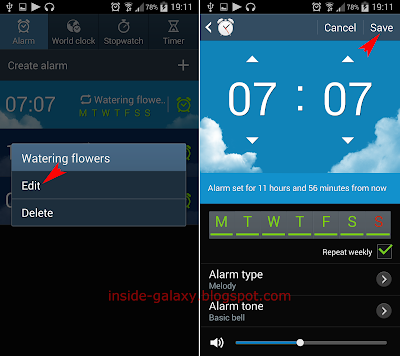

How to edit an alarm?
If you have made a mistake when created a new alarm or if you want to adjust the alarm settings, then you can edit the alarm with ease by using the following steps:
  1. Open Clock app.
  2. Tap Alarm tab.
  3. Long tap the required alarm and then select Edit.
  4. Now, you can adjust the required alarm settings.
  5. Tap Save button to save the changes.


How to delete alarm?
If you want to delete old/unused alarms, then you can do so by using the following steps:
  1. Open Clock app.
  2. Tap Alarm tab.
  3. To delete a single alarm go to the step #4, while to delete multiple alarms go to the step #5.
  4. Deleting a single alarm:
    • Long tap the required alarm and then select Delete.
    • The selected alarm will be deleted.
  5. Deleting multiple alarms:
    • Tap the Menu key and then select Delete.
    • Select the required alarms you want to delete, or tap Select all to select all of your alarms.
    • Tap Delete button.
    • The selected alarms will be deleted.

FYI, there are another alarm-related settings available in this phone: 1) Single tap feature which will allow you to turn off or snooze the alarm by single tapping the on-screen icon, 2) Flash notification feature which will set your phone flashes the camera light when the alarm goes off (this feature is designed for those of users who hard hearing because the flash notification will be more noticeable than the alarm tone).