Samsung Galaxy S4: How to Delete Music Files in a Windows Computer via Windows Explorer App

If you can't delete your music files directly from your Samsung Galaxy S4, e.g: when the screen is broken but the phone can still be turned on, then alternatively you can connect your phone with your Windows PC and then delete the music files using Windows Explorer app. It can also be an alternative way if you have not had the Samsung Kies 3 app in your PC yet. However, if you'd like to backup your music files first by transferring them to your computer before deleting them, you can see the complete steps here.

------------------------------------
Disclaimer: this post is written based on Samsung Galaxy S4 GT-I9500 runs with Android 5.0.1 Lollipop and the computer uses Windows 7 Professional 32-bit as the operating system.
------------------------------------

How to delete music files from Samsung Galaxy S4 with Android 5.0.1 Lollipop in a Windows computer via Windows Explorer app?
As the example, we'll delete all music files stored in the Music folder in the internal storage of Samsung Galaxy S4 while it's being connected to a Windows PC via Windows Explorer app by using the following steps:
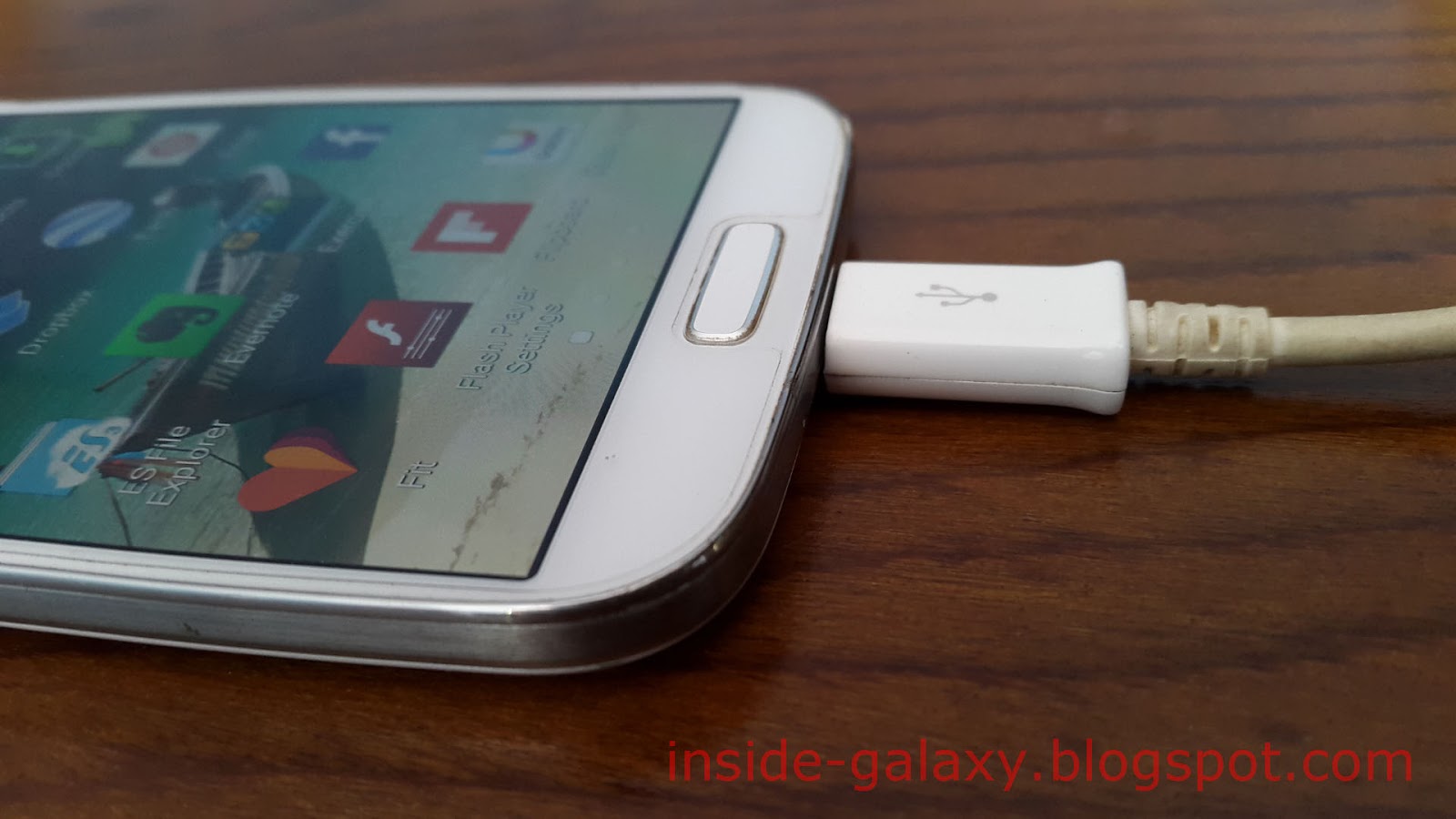
  1. Connect your phone to the computer using the provided USB cable by plugging the micro USB connector to the micro USB port in your device (it's located under the Home key) and the USB connector to a USB port on your PC. If it's the first time for you to connect your phone with the PC, your PC may need a few minutes to install the driver. By default, your phone will use MTP as the connection mode.
  2. When the phone has been successfully connected to your PC and is ready to use, a pop up window will appear on your computer. Click Open device to view files to automatically explore your phone in the Windows Explorer.
  3. In the Windows Explorer app, click the Phone folder to explore the internal storage of your phone, and then click the Music folder to view all music files within this folder.
  4. Select all music files within the Music folder by using the keyboard shortcuts Ctrl+A.
  5. To delete the selected music files, press the Delete key in your PC's keyboard, or click the right-mouse button and then select Delete.
  6. Click the Yes button to confirm deleting the music files.
  7. All music files within the Music folder will be permanently deleted from your phone.
  8. Once done, close the Windows Explorer app and then you can disconnect your phone from the PC by unplugging the USB cable from your phone and your PC.

Samsung Galaxy S4: How to Transfer Music Files to a Windows PC via Windows Explorer App

For some reason, you'll probably need to transfer your music files to your Windows computer, e.g: when you want to backup your music files by copying them to your computer so that when you accidentally lose them you can easily retrieve them from your computer, when you want to free up some space in your phone by moving your music files to your computer, etc. However, if you don't like using Samsung Kies 3 app to transfer files between your phone and your Windows PC, or if you have not installed Samsung Kies 3 app yet, you can still easily transfer your music files from your phone to your Windows computer by using Windows Explorer app.

------------------------------------
Disclaimer: this post is written based on Samsung Galaxy S4 GT-I9500 runs with Android 5.0.1 Lollipop and the computer uses Windows 7 Professional 32-bit as the operating system.
------------------------------------

How to transfer music files from Samsung Galaxy S4 with Android 5.0.1 Lollipop to a Windows computer via Windows Explorer app?
As the example, we'll copy and move all music files stored in the Music folder in the internal storage of Samsung Galaxy S4 to a Windows PC via Windows Explorer app by using the following steps:
  1. Connect your phone to the computer using the provided USB cable by plugging the micro USB connector to the micro USB port in your device (it's located under the Home key) and the USB connector to a USB port on your PC. If it's the first time for you to connect your phone with the PC, your PC may need a few minutes to install the driver. By default, your phone will use MTP as the connection mode.
  2. When the phone has been successfully connected to your PC and is ready to use, a pop up window will appear on your computer. Click Open device to view files to automatically explore your phone in the Windows Explorer app.
  3. In the Windows Explorer app, click the Phone folder to explore the internal storage of your phone, and then click the Music folder to view all music files stored within this folder.
  4. Select all music files within the Music folder by using the keyboard shortcuts Ctrl+A.
  5. If you'd like to copy the music files, use the keyboard shortcuts Ctrl+C, or click the right-mouse button and then select Copy. While, if you'd like to move the music files, use the keyboard shortcuts Ctrl+X, or click the right-mouse button and then select Cut.
  6. Now, navigate to a folder in your PC where you want to place the copied music files and then paste the files by using the keyboard shortcuts Ctrl+V, or click the right-mouse button and then select Paste.
  7. The music files will be copied or moved from the Music folder in the internal storage of your phone to the selected folder in your PC.
  8. Once done, close the Windows Explorer app and then you can disconnect your phone from the PC by unplugging the USB cable from your phone and your PC.

Samsung Galaxy S4: How to Add Music from a Windows Computer via Windows Explorer App

Samsung Galaxy S4 comes with the default Music Player app that can be used to listen to the music stored in the phone memory or in the SD card. If you use your Windows PC as the main storage of your music collections, you can transfer them to your phone with ease via Windows Explorer app so that you can listen them directly from your phone anytime you like. Also, it can be an alternative way if you don't like using Samsung Kies 3 app to transfer files between your PC and your phone.

------------------------------------
Disclaimer: this post is written based on Samsung Galaxy S4 GT-I9500 runs with Android 5.0.1 Lollipop and the computer uses Windows 7 Professional 32-bit as the operating system.
------------------------------------

How to add music from a Windows Computer to Samsung Galaxy S4 with Android 5.0.1 Lollipop via Windows Explorer App?
As the example, we'll copy some music files from a Windows PC to the Music folder in the SD card in Samsung Galaxy S4 by using the following steps:
  1. Connect your phone to the computer using the provided USB cable by plugging the micro USB connector to the micro USB port in your device (it's located under the Home key) and the USB connector to a USB port on your PC. If it's the first time for you to connect your phone with the PC, your PC may need a few minutes to install the driver. By default, your phone will use MTP as the connection mode.
  2. When your phone has been successfully connected to your PC and is ready to use, a pop up window will appear on your computer. Click Open device to view files to automatically explore your phone in the Windows Explorer app.
  3. In the Windows Explorer app, navigate to the Music folder in the SD card in your phone by using the following steps:
    • Click the Card folder to explore SD card in your phone.
    • Click the Music folder. All music files in this folder will be displayed here.
  4. Copy the required music files in your PC via Windows Explorer app by using the following steps:
    • Open a new Windows Explorer app and then navigate to the folder in your PC where the music files you want to add to your phone are placed in.
    • Select the required music files and then copy them by using the keyboard shortcuts Ctrl+C, or click the right-mouse button and then select Copy.
  5. Paste copied music files to your phone by using the following steps:
    • Open the Windows Explorer app that you use to explorer the Music folder in the SD card in your phone (see the step #3).
    • Paste the copied music files by using the keyboard shortcuts Ctrl+V, or click the right-mouse button and then select Paste.
    • The selected music files will be copied from your PC to your phone. 
    • Wait until the process is completed.
  6. Once done, close all Windows Explorer apps and you can disconnect your phone from the PC by unplugging the USB cable from your phone and your PC.
  7. Now, you can enjoy listening to the music that you have just added in your Samsung Galaxy S4 by using the stock Music Player app or any third-party Music Player app that you have installed in your phone.

Samsung Galaxy S4: How to Delete Music Files via Samsung Kies 3 App in a Windows Computer

Samsung Kies 3 app is an app from Samsung that can be used to manage multimedia files in your Samsung Galaxy S4. If needed, you can use this app to easily delete unwanted music files from your phone when your phone is being connected to a computer. However, if you'd like to backup your music files first before deleting them, you can see the complete steps here.

------------------------------------
Disclaimer: this post is written based on Samsung Galaxy S4 GT-I9500 runs with Android 5.0.1 Lollipop and the computer uses Windows 7 Professional 32-bit as the operating system.
------------------------------------

How to delete music files in Samsung Galaxy S4 with Android 5.0.1 Lollipop via Samsung Kies 3 app in a Windows computer?
As the example, we'll delete some music files in Samsung Galaxy S4 via Samsung Kies 3 app in a Windows PC by using the following steps:
  1. Connect your phone to the computer using the provided USB cable by plugging the micro USB connector to the micro USB port in your device (it's located under the Home key) and the USB connector to a USB port on your PC. If it's the first time for you to connect your phone with the PC, your PC may need a few minutes to install the driver. By default, your phone will use MTP as the connection mode.
  2. When your phone has been successfully connected to your PC, launch Samsung Kies 3 app in your computer. If you have not installed this app yet, you can download it here and then install it in your computer.
  3. Samsung Kies 3 app will connect to your phone automatically.
  4. In the Kies screen, click Music located at the left side menu. All of music files in your phone, either those in the internal memory or in the SD card, will be displayed here.
  5. Select the required music files you want to delete from your phone and then click at the top of the Kies screen.
  6. Click the Delete button to confirm deleting the selected music files.
  7. The selected music files will be deleted from your phone.
  8. Once done, you can disconnect your phone from Samsung Kies 3 app by clicking in the right side of the device name in the Kies screen. Then, you can disconnect your phone from the PC by unplugging the USB cable from your phone and your PC.

Samsung Galaxy S4: How to Transfer Music Files to a Windows Computer

Transferring all music files from your Samsung Galaxy S4 to a Windows computer via Samsung Kies 3 app is one of the ways that can be taken to backup them so that when you lose your music files, e.g: you have accidentally deleted them, you can easily retrieve them from your computer.

------------------------------------
Disclaimer: this post is written based on Samsung Galaxy S4 GT-I9500 runs with Android 5.0.1 Lollipop and the computer uses Windows 7 Professional 32-bit as the operating system.
------------------------------------

How to transfer music files from Samsung Galaxy S4 with Android 5.0.1 Lollipop to a Windows computer via Samsung Kies 3 app?
As the example, we'll copy all music files from Samsung Galaxy S4, either those in the internal storage and in the SD card, to a Windows PC via Samsung Kies 3 app by using the following steps:
  1. Connect your phone to the computer using the provided USB cable by plugging the micro USB connector to the micro USB port in your device (it's located under the Home key) and the USB connector to a USB port on your PC. If it's the first time for you to connect your phone with the PC, your PC may need a few minutes to install the driver. By default, your phone will use MTP as the connection mode
    .
  2. When your phone has been successfully connected to your PC, launch Samsung Kies 3 app in your computer. If you have not installed this app yet, you can download it here and then install it in your computer.
  3. Samsung Kies 3 app will connect to your phone automatically.
  4. In the Kies screen, click Music located at the left side menu. All of music files in your phone will be displayed here.
  5. Click the checkbox in the left side of the title row to select all music files and then click at the top of the Kies screen.
  6. Select a folder in your PC and then click the Select Folder button to save the selected music files to the selected folder. It may take several minutes or so, depends on how many music files that you want to transfer to your PC.
  7. When the transfer process is completed, you can disconnect your phone from Samsung Kies 3 app by clicking in the right side of the device name in the Kies screen. Then, you can disconnect your phone from the PC by unplugging the USB cable from your phone and your PC.

Samsung Galaxy S4: How to Add Music from a Windows Computer via Samsung Kies 3 App

If you love to listen to the music in your Samsung Galaxy S4, you can easily add your favourite music into your phone by using some different methods, one of which is by adding music files stored in your Windows computer to your phone via Samsung Kies 3 app.

------------------------------------
Disclaimer: this post is written based on Samsung Galaxy S4 GT-I9500 runs with Android 5.0.1 Lollipop and the computer uses Windows 7 Professional 32-bit as the operating system.
------------------------------------

How to add music from a Windows computer to your Samsung Galaxy S4 with Android 5.0.1 Lollipop via Samsung Kies 3 app?
As the example, we'll add some mp3 files from a Windows PC to the Samsung Galaxy S4 via Samsung Kies 3 app by using the following steps:
  1. Connect your phone to the computer using the provided USB cable by plugging the micro USB connector to the micro USB port in your device (it's located under the Home key) and the USB connector to a USB port on your PC. If it's the first time for you to connect your phone with the PC, your PC may need a few minutes to install the driver. By default, your phone will use MTP as the connection mode.
  2. When your phone has been successfully connected to your PC, launch Samsung Kies 3 app in your computer. If you have not installed this app yet, you can download it here and then install it in your computer.
  3. Samsung Kies 3 app will connect to your phone automatically.
  4. In Samsung Kies 3 app screen, click Music located at the left side menu. All of music files in your phone will be displayed here.
  5. Tap at the top of the Kies 3 app screen and then select Internal memory if you'd like to add the music files to the Music folder in the internal storage of your phone, or select External memory if you'd like to add the music files to the Music folder in the SD card.
  6. Navigate to the folder in your Windows PC where the music files you want to add to your phone are placed in.
  7. Select the required music files you want to add to your phone and then click the Open button.
  8. If it's the first time for you to add music to your phone from a PC via Kies 3 app, you will be asked to install codec so that you can use Kies 3 app to add music files to your phone. Do as follows to install codec:
    • Click the Install button in the codec installation window.
    • Review the terms of the license agreement and then click the I Agree button.
    • Click the Next button in the installation options window.
    • If needed, you can change the installation folder by clicking the Browse... button and then click the Install button to start the installation process.
    • When the installation process has been completed, click the Close button to close the installation window.
  9. The selected music files have been added to your phone.
  10. Once done, you can disconnect your phone from Samsung Kies 3 app by clicking in the right side of the device name in the Kies 3 screen. Then, you can disconnect your phone from the PC by unplugging the USB cable from your phone and your PC.
  11. Now, you can play the music you have added to your phone by using the stock Music Player app or other third-party Music Player apps.

Samsung Galaxy S4: How to Delete Photos via Windows Explorer App in a Windows Computer

Deleting unwanted photos from your Samsung Galaxy S4 via Samsung Kies 3 app in your Windows PC is one of the ways that can be taken when you can't directly delete those photos from your phone, e.g: when the screen is broken but the phone can still be turned on. But, if you don't like using Samsung Kies app or if you have not installed this app yet, you can easily delete those unwanted photos from your phone via Windows Explorer app in your Windows computer.

------------------------------------
Disclaimer: this post is written based on Samsung Galaxy S4 GT-I9500 runs with Android 5.0.1 Lollipop and the computer uses Windows 7 Professional 32-bit as the operating system.
------------------------------------

How to delete photos in Samsung Galaxy S4 with Android 5.0.1 Lollipop via Windows Explorer in a Windows computer?
As the example, we'll delete some photos taken by the Camera app in a Windows PC using Windows Explorer app by using the following steps:
  1. Connect your phone to the computer using the provided USB cable by plugging the micro USB connector to the micro USB port in your device (it's located under the Home key) and the USB connector to a USB port on your PC. If it's the first time for you to connect your phone with the PC, your PC may need a few minutes to install the driver. By default, your phone will use MTP as the connection mode.
  2. When your phone has been successfully connected to your PC, a pop up window will appear in your PC to provide you with some available options. Click Open device to view files to automatically explore your phone in the Windows Explorer app.
  3. In the Windows Explorer, click Phone folder if you have set the internal memory as the default storage of the Camera app, or click Card folder if you have set SD card as the default storage of the Camera app.
  4. Click DCIM folder and then click Camera folder. All photos taken by the Camera app will be displayed here.
  5. Select the required photos you want to delete from your phone.
  6. Press the Delete key on your computer's keyboard or, click the right-mouse button and then select Delete.
  7. Click Yes button to confirm deleting the selected photos.
  8. The selected photos have been permanently deleted from your phone.
  9. Once done, close the Windows Explorer app. Then you can disconnect your phone from your PC by unplugging the USB cable from your phone and your PC.

Samsung Galaxy S4: How to Delete Photos via Samsung Kies 3 App in a Windows Computer

You can easily delete unwanted photos from your phone via Gallery app, My Files app or other third-party file manager apps. But, there's a condition that won't let you do so, e.g: when your phone's screen is broken but the phone can still be turned on. If that so, you can connect your phone to Samsung Kies 3 app in your Windows PC and then delete photos from Samsung Kies 3 app. FYI, if you'd like to transfer your photos to your PC first via Kies 3 app before deleting them, you can see the complete steps here.

------------------------------------
Disclaimer: this post is written based on Samsung Galaxy S4 GT-I9500 runs with Android 5.0.1 Lollipop and the computer uses Windows 7 Professional 32-bit as the operating system.
------------------------------------


How to delete photos in Samsung Galaxy S4 with Android 5.0.1 Lollipop via Samsung Kies 3 app in a Windows computer?
You can do so by using the following steps:
  1. Connect your phone to the computer using the provided USB cable by plugging the micro USB connector to the micro USB port in your device (it's located under the Home key) and the USB connector to a USB port on your PC. If it's the first time for you to connect your phone with the PC, your PC may need a few minutes to install the driver. By default, your phone will use MTP as the connection mode.
  2. When your phone has been successfully connected to your PC, launch Samsung Kies 3 app in your computer. If you have not installed this app yet, you can download it here and then install it in your computer.
  3. Samsung Kies 3 app will connect to your phone automatically.
  4. In Samsung Kies 3 app screen, click Photos located at the left side menu. All of photos in your phone will be displayed here.
  5. By default, your photos will be grouped by the date. But, if needed, you can group them by month, by year or by folder.
  6. Select the required photos you want to delete from your phone and then click at the top of the Kies screen.
  7. Click Delete button to confirm deleting the selected photos.
  8. The selected photos have been deleted from your phone.
  9. Once done, you can disconnect your phone from Kies 3 app by clicking in the right side of the device name in the Kies screen. Then, you can disconnect your phone from the PC by unplugging the USB cable from your phone and your PC.

Samsung Galaxy S4: How to Change USB PC Connection Mode

One of the ways that can be used to connect your Samsung Galaxy S4 to a computer is by using the provided USB cable. FYI, there are two USB connection modes available when your phone is being connected to the PC: MTP and PTP. By default, your phone will use MTP as the connection mode. But, if needed, you can easily change the connection mode from MTP to PTP or from PTP to MTP, as the example: when your computer doesn't support MTP so that you need to change the connection mode to PTP, or when your phone can't be connected to Samsung Kies app since it uses PTP so that you need to change the connection mode to MTP, etc.


How to change the USB PC connection mode?
You can do so by using the following steps:
  1. While your Samsung Galaxy S4 is being connected to a PC, swipe down the top of the screen(status bar) using your finger to open up the notification panel and then tap Connected as a media device or Connected as a camera.
  2. Now, you can select the required USB connection mode from the following options:
    • Media device (MTP): select this option to set MTP as the USB connection mode. When this option is enabled, your PC will detect your phone as a storage device for media files and you'll be allowed to transfer media files from your phone to the PC or vice versa.
    • Camera (PTP): select this option to set PTP as the USB connection mode. When this option is enabled, your PC will detect your phone as a digital camera and you'll be allowed to transfer photos using camera software and transfer any files onto PC that do not support MTP.
  3. The USB connection mode has been changed. FYI, each time you change the connection mode, your PC will re-connect to your phone and a pop up window will appear on your PC to provide you with some options available of the selected connection mode.

Samsung Galaxy S4: How to Transfer Photos to a Windows Computer with Samsung Kies 3 App

Samsung Kies is a program that can be used to organize data and multimedia content stored on Samsung Galaxy phones. Given that function, you can connect your Samsung Galaxy S4 to Samsung Kies app on your Windows computer using the provided USB cable and then do the desired actions, e.g: transferring photos from your phone to your PC when you need to backup your photos or free up some space in your phone.

------------------------------------
Disclaimer: this post is written based on Samsung Galaxy S4 GT-I9500 runs with Android 5.0.1 Lollipop and the computer uses Windows 7 Professional 32-bit as the operating system.
------------------------------------

How to transfer photos from Samsung Galaxy S4 with Android 5.0.1 Lollipop to a Windows computer via Samsung Kies 3 app?
You can do so by using the following steps:
  1. Connect your phone to the computer using the provided USB cable by plugging the micro USB connector to the micro USB port in your device (it's located under the Home key) and the USB connector to a USB port on your PC. If it's the first time for you to connect your phone with the PC, your PC may need a few minutes to install the driver. By default, your phone will use MTP as the connection mode.
  2. When your phone has been successfully connected to your PC, launch Samsung Kies 3 app in your computer. If you have not installed this app yet, you can download it here and then install it in your computer. As a note, Samsung Kies 3 app supports Samsung Galaxy phones running with Android 4.3 Jelly Bean or later versions.
  3. Samsung Kies 3 app will connect to your phone automatically.
  4. In Samsung Kies 3 app screen, click Photos located at the left side menu. All of photos in your phone will be displayed here.
  5. By default, your photos will be grouped by the date. But, if needed, you can group them by month, by year or by folder.
  6. Now, you can select the required photos you want to transfer to your PC and then click at the top of the Kies screen.
  7. Select a folder in your PC and then click the Select Folder button to save the selected photos to the selected folder. It may take several minutes or so, depends on how many photos that you want to transfer to your PC. Wait until the process is completed.
  8. Once done, you can disconnect your phone from Samsung Kies 3 app by clicking in the right side of the device name in the Kies screen. Then, you can disconnect your phone from the PC by unplugging the USB cable from your phone and your PC.

Samsung Galaxy S4: How to Easily Import All Photos and Videos to a Windows Computer

When your Samsung Galaxy S4 has been successfully connected to a Windows PC, you'll be provided with an option that will let you easily import all photo and video files stored in your phone, either those in the internal memory or SD card, to the PC. The option to import photos and videos will be available no matter what the connection mode you're using(MTP or PTP).

------------------------------------
Disclaimer: this post is written based on Samsung Galaxy S4 GT-I9500 runs with Android 5.0.1 Lollipop and the computer uses Windows 7 Professional 32-bit as the operating system.
------------------------------------

How to easily import all photo and video files from Samsung Galaxy S4 with Android 5.0.1 Lollipop to a Windows computer?
You can do so by using the following steps:
  1. Connect your phone to the computer using the provided USB cable by plugging the micro USB connector to the micro USB port in your device (it's located under the Home key) and the USB connector to a USB port on your PC. If it's the first time for you to connect your phone with the PC, your PC may need a few minutes to install the driver.
  2. When the phone has been connected to your PC and is ready to use, a pop up window will appear on your computer. Click Import pictures and videos to let your PC locates all photos and videos in your phone. It may take several minutes or so, depends on how many photos and videos you have. Wait until the process is completed.
  3. If needed, you can enter the desired tag for the folder name that will be used to save the imported files. By default, the folder will be created in My Pictures and "Imported date + tag" will be used as the folder name. As the example, if you import the files on August 8, 2015 and use "my photo" as the tag, then the folder name will be "2015-08-09 my photo".
  4. Now, click Import button to import all photos and videos from your phone to your PC. It may take several minutes or so, depends on how many photos and videos you have. Wait until the process is completed.
  5. The imported folder will be opened automatically when the PC has completely imported all photos and videos from your phone.
  6. Now, you can disconnect your phone from the PC by unplugging the USB cable from your phone and your PC.

Samsung Galaxy S4: How to Transfer Photos to a Windows Computer

There are some reason why you'll probably need to transfer your photos from your Samsung Galaxy S4 to your PC, e.g: when you want to periodically backup your photos so that you can easily retrieve your photos if something bad happens with your phone, if you want to free up some space in your phone by moving your photos to your PC, etc.

------------------------------------
Disclaimer: this post is written based on Samsung Galaxy S4 GT-I9500 runs with Android 5.0.1 Lollipop and the computer uses Windows 7 Professional 32-bit as the operating system.
------------------------------------

How to transfer photos from Samsung Galaxy S4 with Android 5.0.1 Lollipop to a Windows computer?
As the example, we'll transfer some photos taken with the Camera app to a Windows PC by using the following steps:
  1. Connect your phone to the computer using the provided USB cable by plugging the micro USB connector to the micro USB port in your device (it's located under the Home key) and the USB connector to a USB port on your PC. If it's the first time for you to connect your phone with the PC, your PC may need a few minutes to install the driver. By default, your phone will use MTP as the connection mode.
  2. When the phone has been connected to your PC and is ready to use, a pop up window will appear on your computer. Click Open device to view files to automatically explore your phone in the Windows Explorer.
  3. By default, photos taken with the Camera app will be saved in the DCIM folder in the phone memory. In the Windows Explorer, click Phone folder to explore the internal memory of your phone and then click DCIM folder and then click Camera folder. All of photos taken with the Camera app will be displayed here.
  4. Select the required photos you want to transfer to your PC.
  5. To copy photos from your phone to your PC go to the step #6, while to move photos from your phone to your PC go to the step #7.
  6. Copying the selected photos to your PC:
    • Use the keyboard shortcuts Ctrl+C, or click the right-mouse button and then select Copy.
    • Now, navigate to the folder on your PC where you want to save the copied photos.
    • To paste the copied photos, use the keyboard shortcuts Ctrl+V, or click the right-mouse button and then select Paste.
    • The selected photos have been copied from your phone to your PC.
  7. Moving the selected photos to your PC:
    • Use the keyboard shortcuts Ctrl+X, or click the right-mouse button and then select Cut.
    • Now, navigate to the folder on your PC where you want to save the selected photos.
    • To paste the selected photos, you can use the keyboard shortcuts Ctrl+V, or click the right-mouse button and then select Paste.
    • The selected photos have been moved from your phone to your PC.
  8. Once done, close the Windows Explorer and you can disconnect your phone from the PC by unplugging the USB cable from your phone and your PC.

Samsung Galaxy S4: How to Set Youtube App to not Record Your Search History in Android 5.0.1 Lollipop

In order to help you easily track or use the search term that you have used while searching a video on Youtube, this app automatically saves all your searches by default. But, for some reason, you may tend to not save your search history, for instance: when you don't want others know what you have searched on Youtube. Aside from manually deleting the search history, you can set Youtube app to not record your search history by enabling the pause search history option.


How to enable the pause search history option in Youtube app?
Assuming that you have an Internet connection, you can prevent your search history to be recorded in Youtube app by using the following steps:
  1. Open Youtube app.
  2. Tap the Menu key and then select Settings.
  3. Tap Privacy.
  4. Check the box next to Pause search history to enable this option.
  5. From now on, all of your search history won't be recorded.

Samsung Galaxy S4: How to Clear Search History in Youtube App in Android 5.0.1 Lollipop

When you want to watch a video in Youtube app in your Samsung Galaxy S4, the best way to easily find a specific video is by using the search function. Shortly after you enter the search term, you'll be provided with the list of videos match with the search term, lets you quickly find the desired video. By default, all searches you have made will be recorded automatically in order to help you track or use the search term you have made before when you want to search a video later. But, if needed, you can easily clean up your search history, for instance: when there are too many search history so that you want to clean them up, when you don't want others know what you have searched on Youtube, etc.


How to clear the search history in Youtube app?
Assuming that you have an Internet connection and is signing in with an account, you can easily clear your search history in Youtube app by using the following steps:
  1. Open Youtube app.
  2. Tap the Menu key and then select Settings.
  3. Tap Privacy.
  4. Tap Clear search history.
  5. Tap OK button to confirm,
  6. All search history made with the currently used account will be cleared.

Samsung Galaxy S4: How to Set Youtube App to not Record Your Watch History in Android 5.0.1 Lollipop

By default, you can view all videos that you have watched on Youtube in the watch history menu. But, for some reason, you may don't want a video or all videos you have watched on Youtube listed in this menu, for instance: when you don't want others know what you have watched on Youtube. Aside from manually deleting unwanted videos from the watch history menu, you can also set Youtube app to not record videos that you have watched by enabling the pause watch history option.


How to enable the pause watch history option in Youtube app?
You can do so by using the following steps:
  1. Open Youtube app.
  2. Tap the Menu key and then select Settings.
  3. Tap Privacy.
  4. Check the box next to Pause watch history to enable this option.
  5. From now on, Youtube app won't record videos that you watch on Youtube.