Samsung Galaxy S8: How to Enable or Disable Edge Panel Handle Vibration Feature in Android 7.0 Nougat

If needed, you can set your Samsung Galaxy S8 to provide you a short pulse of vibration when you're tapping the edge panel handle to access edge panels by enabling the edge panel handle vibration feature. This feature comes handy especially when you set the handle to be invisible because the vibration will help you easily know that you have tapped the right area where the handle is placed in.


How to enable or disable the edge panel handle vibration feature?
Assuming that the edge panels feature is enabled, you can do so by using the following steps:
  1. While the main screen is turned on, drag the edge panel handle towards the centre of the screen to open the edge panel.
  2. Tap at the bottom of the screen to quickly go to the edge panels menu.
  3. Tap at the top right and then select Handle settings.
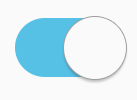
  4. Tap the ON/OFF switch next to Vibration to enable or disable this option. When the switch turns means the edge panel handle vibration feature is enabled and your phone will vibrate when you're tapping the edge panel handle.
Samsung Galaxy S8: How to Make Edge Panel Handle Invisible in Android 7.0 Nougat

In your Samsung Galaxy S8, you can have an invisible edge panel handle by adjusting its transparency to the highest level if you want to stay using the edge panels feature but don't want to see its handle displayed or take any space on your screen.


How to make the edge panel handle invisible?
Assuming that the edge panels feature is enabled, you can do so by using the following steps:
  1. While the main screen is turned on, drag the edge panel handle towards the centre of the screen to open the edge panel.
  2. Tap at the bottom of the screen to quickly go to the edge panels menu.
  3. Tap at the top right and then select Handle settings.
  4. Slide the handle transparency adjustment bar to the rightmost to have an invisible handle
    As a note, since the handle is invisible, you have to remember where the handle position is when you need to use it to access the edge panels. You can also set the handle to a bigger size so you'll have a wider area to easily access the edge panels.

Samsung Galaxy S8: How to Adjust Edge Panel Handle Size in Android 7.0 Nougat

If needed, you can adjust the size of the edge panel handle in your Samsung Galaxy S8 to a smaller size if you'd like it just takes small space of your screen or to a larger size to help you easily access to your edge panels if you have difficulty when doing so with smaller handle.


How to adjust the size of the edge panel handle?
Assuming that the edge panels feature is enabled, you can do so by using the following steps:
  1. While the main screen is turned on, drag the edge panel handle towards the centre of the screen to open the edge panel.
  2. Tap at the bottom of the screen to quickly go to the edge panels menu.
  3. Tap at the top right and then select Handle settings.
  4. Slide the handle size adjustment bar to the left for a smaller handle or to the right for a larger handle.
  5. The size of the edge panel handle has been adjusted.