Samsung Galaxy S8: How to Adjust Apps Screen Grid Size in Android 7.0 Nougat

Apps screen is a part on your Samsung Galaxy S8 where you can use to access all your apps, either pre-loaded or third-party apps. Since your phone supports multiple apps screens, your apps will be displayed in multiple pages if you have many apps and they don't fit in a single page. However, the grid size of your apps screen can be adjusted so you can display more or less items within a page in your apps screen.


How to adjust the grid size of an apps screen?
As the example, we'll do so by using three different methods: from a home screen, from an apps screen, and from the settings menu.

Method #1: From a home screen
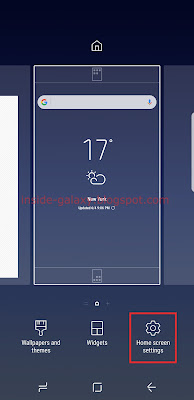
  1. On a home screen, pinch the screen using two fingers or long tap on an empty area to go to the screen where you can customise your home screen.
  2. Tap Home screen settings.
  3. Tap Apps screen grid.
    As a note, this option won't be available if you set the home screen layout to Home screen only because the apps screen will be disabled and all your apps will be displayed on the home screen.
  4. Select the required grid size you want to use. There are two grid sizes available:
    • 4x6: select this option to divide an apps screen becomes 4 rows and 6 columns so you can display up to 24 items within a page in your apps screen.
    • 5x6: select this option to divide a home screen becomes 5 rows and 6 columns so you can display up to 30 items within a page in your apps screen.
    Tap Apply button to apply your selection.
  5. The selected grid size will be applied to your apps screen.


Method #2: From an apps screen
  1. On a home screen, swipe up the bottom of the screen to go to the apps screen.
  2. Tap at the top right and then select Settings.
  3. Tap Apps screen grid.
  4. Select the required grid size you want to use. There are two grid sizes available:
    • 4x6: select this option to divide an apps screen becomes 4 rows and 6 columns so you can display up to 24 items within a page in your apps screen.
    • 5x6: select this option to divide a home screen becomes 5 rows and 6 columns so you can display up to 30 items within a page in your apps screen.
    Tap Apply button to apply your selection.
  5. The selected grid size will be applied to your apps screen.

Method #3: From the settings menu
  1. On any screen, swipe down the top of the screen to open up the notification panel and then tap to go to the settings menu.
  2. Tap Display.
  3. Tap Home screen.
  4. Tap Apps screen grid.
  5. Select the required grid size you want to use. There are two grid sizes available:
    • 4x6: select this option to divide an apps screen becomes 4 rows and 6 columns so you can display up to 24 items within a page in your apps screen.
    • 5x6: select this option to divide a home screen becomes 5 rows and 6 columns so you can display up to 30 items within a page in your apps screen.
    Tap Apply button to apply your selection.
  6. The selected grid size will be applied to your apps screen.

Samsung Galaxy S8: How to Adjust Home Screen Grid Size in Android 7.0 Nougat

By default, the grid size of a home screen in your Samsung Galaxy S8 is set to 5x5 which means a single home screen will be divided into 5 rows and 5 columns so you can display up to 25 1x1 widgets or app shortcuts. If needed, you can adjust that grid size so you can display more or less items in your home screen.


How to adjust the grid size of a home screen?
As the example, we'll do so by using two different methods: from a home screen and from the settings menu.

Method #1: From a home screen
  1. On a home screen, pinch the screen using two fingers or long tap on an empty area to go to the screen where you can customise your home screen.
  2. Tap Home screen settings.
  3. Tap Home screen grid.
  4. Select the required grid size you want to use. There are three grid sizes available:
    • 4x5: select this option to divide a home screen becomes 4 rows and 5 columns so you can display up to 20 items.
    • 4x6: select this option to divide a home screen becomes 4 rows and 6 columns so you can add or display up to 24 items.
    • 5x5: select this option to divide a home screen becomes 5 rows and 5 columns so you can add or display up to 25 items.
    Once done, tap Apply button to apply your selection.
  5. The selected grid size will be applied to your home screen.


Method #2: From the settings menu
  1. On any screen, swipe down the top of the screen to open up the notification panel and then tap to go to the settings menu.
  2. Tap Display.
  3. Tap Home screen.
  4. Tap Home screen grid.
  5. Select the required grid size you want to use. There are three grid sizes available:
    • 4x5: select this option to divide a home screen becomes 4 rows and 5 columns so you can display up to 20 items.
    • 4x6: select this option to divide a home screen becomes 4 rows and 6 columns so you can add or display up to 24 items.
    • 5x5: select this option to divide a home screen becomes 5 rows and 5 columns so you can add or display up to 25 items.
    Once done, tap Apply button to apply your selection.
  6. The selected grid size will be applied to your home screen.

Samsung Galaxy S8: How to Automatically Show All Apps in Home Screen in Android 7.0 Nougat

By default, the home screen layout in Samsung Galaxy S8 is set to Home and Apps screens which makes your phone has a separate Apps screen contains with all your apps that you can access simply by swiping up the bottom of the home screen. While using this layout, you can add shortcuts to your favourite apps on your home screen for faster access. However, if you don't have many apps in your phone and want to be able to access all your apps directly from your home screen, you can set the layout to Home screen only to have your phone disables the Apps screen and shows all your apps in your home screen automatically.


How to set the home screen layout to Home screen only?
As the example, we'll do so by using two different methods: from a home screen and from the settings menu.

Method #1: From a home screen
  1. On a home screen, pinch the screen using two fingers or long tap on an empty area to go to the screen where you can customise your home screen.
  2. Tap Home screen settings.
  3. Tap Home screen layout.
  4. Select Home screen only and then tap Apply button.
  5. A pop-up window appears to inform you that changing the layout will discard any customisations you have made to the home screen. Tap Apply button to continue applying your selection.
  6. Now, your phone will show all your apps on the home screen for easier access.


Method #2: From the settings menu
  1. On any screen, swipe down the top of the screen to open up the notification panel and then tap to go to the settings menu.
  2. Tap Display.
  3. Tap Home screen.
  4. Tap Home screen layout.
  5. Select Home screen only and then tap Apply button.
  6. A pop-up window appears to inform you that changing the layout will discard any customisations you have made to the home screen. Tap Apply button to continue applying your selection.

  7. Now, your phone will show all your apps on the home screen for easier access.